
Import material
Import a text or spreadsheet word list
Bring a list you already use, inspect the candidates and turn a manageable selection into a study plan.
Import your own materials
Bring your own content into a learning plan.
Bring material you actually want to learn. FreeLingo prepares candidate entries for you to check before creating or adding to a study plan.
- Paste textPaste an article, notes or a list, then inspect the extracted entries.
- Read an imageUse text recognition on an image you have permission to use, then check recognition errors.
- Photograph a pageCapture a book or handout and check the recognised text before studying it.
- Extract from videoUse the App video workflow to extract speech as text and prepare candidate vocabulary.
Review before you study
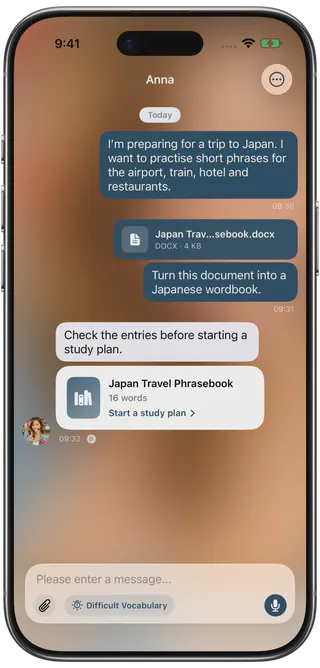
Check the entries before creating a plan.
Preview the candidate entries, use available basic-word filtering and remove duplicates. Check spellings and notes here; inspect generated meanings in the first word cards after starting the plan.
- Documents
- Pasted text
- Images
- Camera
- Video
Prepare a small sample first
Use a list you are entitled to use and keep a copy of the source. Start with a few representative entries, including any accents, non-Latin characters or multiword expressions that matter. This makes conversion errors easier to spot before you process a longer list.
TXT, CSV, XLS/XLSX, DOCX and MD/MARKDOWN are supported document choices. The import page gives the full list and file-size boundary. A supported file type does not establish that every custom layout will be interpreted as intended.
Set the two languages deliberately
The target language is what you are studying. The explanation language is the language used to help you understand it. For these guides, that language is English. Check both before confirming material for a new or existing plan.
A bilingual source may contain notes, labels or definitions. Do not assume that all of these become the exact final meaning on a generated card.
Inspect candidates, then inspect cards
- Select the file through the App’s document entry point.
- Compare the candidate word forms and notes with your source. Look for lost accents, broken lines, labels mistaken for words and duplicates.
- Use basic-word filtering only where it helps. It is not a test of which words you personally know.
- Keep the entries needed for your current task, then create a plan or add them to a compatible existing one.
- Inspect the first generated cards, including meanings and any available audio or AI details. Keep the original context for words with several meanings.
The candidate preview and the finished learning card are different stages. A correct preview does not guarantee that every generated explanation will be correct.
Choose the next step
If your source is a continuous passage, extract from an article instead. If it is an image, use image recognition. Once your entries are ready, set a small new-study workload and check usage limits before adding more.
FAQ
Frequently asked questions
Can I import a TXT word list?
Yes. Select the file in the App and review the resulting candidate entries. Treat the preview as word forms and notes, not as proof that every supplied definition has become a final card meaning.
What other formats can I use?
CSV, XLS/XLSX, DOCX and MD/MARKDOWN are among the supported document formats. See the complete format list.
Will the App know which words I already know?
No personal mastery should be inferred from the basic-word filter. Review the candidates yourself, remove duplicates and keep the entries relevant to your task.
Can I add the list to an existing plan?
Yes. Check that the target and explanation languages fit, then choose the existing plan or create a new one. Inspect the first generated cards before adding more.
Start today
Start with words you need.
Try a small amount of your own material, check the cards and follow the study and review workflow.
 Scan to choose your App Store region