
Bring your material
Turn your material into a wordbook
Use the FreeLingo App to prepare words from documents, course slides, e-books and lists, then choose what belongs in your study plan.
App interface and process illustration
From a file to your first study group.
Follow the same sample Japanese travel phrasebook from an attachment to a wordbook and study plan. The English interface shows illustrative states, not a live conversion recording.
- 01
Choose your material
Select a document, e-book or word list in the App. Check the file and target language before sending.
App interface · Illustrative example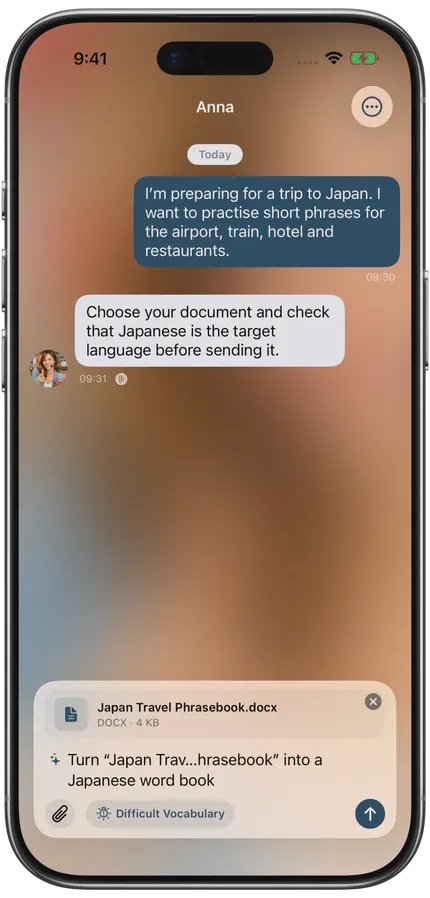
- 02
Prepare candidate entries
Document structure, tokenisation and word-form handling depend on the language and processing path. This is a process illustration, not a live website upload.
Process illustrationJapan Travel Phrasebook.docxDOCX · 4 KB- Read document structure
- Identify target-language entries
- Handle word forms
- Remove repeated entries
Illustration · Processing is initiated in the App
- 03
Check the wordbook
Inspect the prepared entries and the reported count, then decide whether to set up a study plan. A preview is not a verified set of completed word cards.
App interface · Illustrative example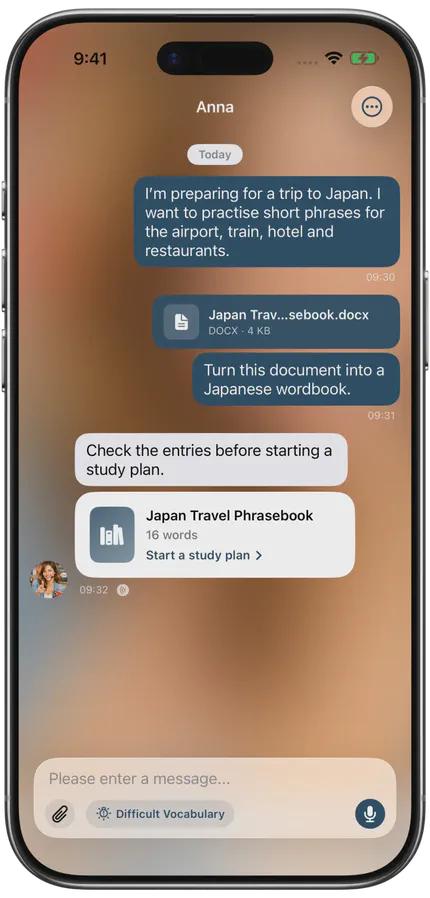
- 04
Start studying and reviewing
After checking and editing, create a plan or add to a compatible one. Study the first cards and return through the scheduled review tasks.
App interface · Illustrative example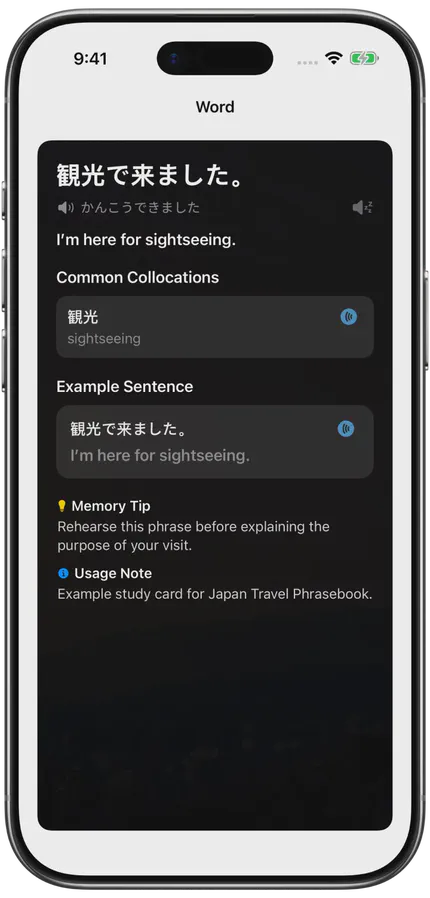
- Read document structure
- Identify target-language entries
- Handle word forms
- Remove repeated entries
Illustration · Processing is initiated in the App
Illustration · Choose files and create plans in the app; conversion is started from the app
Document conversion
Bring a document, e-book or word list.
Read TXT, CSV, DOCX and Markdown word lists on your device. Upload one of the other supported formats for online conversion, up to 50 MB per file.
- DOCX
- PPTX
- XLS / XLSX
- HTML / HTM
- CSV
- JSON
- XML
- EPUB
- TXT
- MD / MARKDOWN
Images, camera input and video have separate App workflows; they are not part of this document-conversion list.
Materials to use
Build vocabulary around what you are studying.
Use your course or reading material to choose the words that matter to your task.
- After class
Course material
Prepare target-language entries from a supported lecture document.
- Before close reading
Articles and papers
Collect candidate vocabulary from a document you are entitled to use.
- Alongside reading
E-books
Bring unfamiliar expressions from an EPUB into your own review routine.
- Listening preparation
A transcript saved as TXT
Import an exported text transcript, then check and select the entries.
- Batch import
Your vocabulary list
Prepare entries from TXT, CSV, XLS/XLSX or Markdown.
Other import options in the app
Images, photos and video have separate entry points.
These options are separate from document conversion. Images, audio and ZIP archives are not document formats.
- Paste textPaste an article, notes or a list, then inspect the extracted entries.
- Read an imageUse text recognition on an image you have permission to use, then check recognition errors.
- Photograph a pageCapture a book or handout and check the recognised text before studying it.
- Extract from videoUse the App video workflow to extract speech as text and prepare candidate vocabulary.
Review before you study
Check the entries before creating a plan.
Preview the candidate entries, use available basic-word filtering and remove duplicates. Check spellings and notes here; inspect generated meanings in the first word cards after starting the plan.
- Documents
- Pasted text
- Images
- Camera
- Video
Choose the right input
Open TXT, CSV, DOCX or Markdown (MD or MARKDOWN) in Documents to read a word list on your device. For PDF, PPTX, XLS/XLSX, HTML/HTM, JSON, XML and EPUB, FreeLingo can convert the file online. Each uploaded file can be up to 50 MB.
Pasting text, recognising an image, photographing a textbook and extracting text from a video’s speech have their own App entry points. Use text and word lists, article excerpts or image recognition according to your source.
Check the candidates before making a plan
Set the target language and the language you want to learn through. Start with a short, readable sample. Inspect the candidate word forms and notes against the original, remove duplicates and use basic-word filtering if it is useful. That filter does not know everything you personally know.
Create a new plan or add the checked entries to a suitable existing plan. Then inspect the first generated cards: the candidate preview is not a guarantee that every supplied definition has become the final learning-card meaning. Keep the source sentence available for words with several senses.
Conversion happens in the App
This website shows the workflow; it does not accept uploads. Screens show illustrative states of the English App interface using the same sample Japanese travel phrasebook; they are not a live conversion recording. The controls and wording you see may differ with your App language and version.
Only use material you are entitled to use. In the chat-attachment workflow, a successful upload uses a request from the shared daily chat allowance; check usage conditions before retrying after an error.
FAQ
Frequently asked questions
Which document formats are supported?
PDF, DOCX, PPTX, XLS/XLSX, HTML/HTM, CSV, JSON, XML, EPUB, TXT and MD/MARKDOWN. These are 11 format groups and 14 extensions; they do not include legacy DOC, PPT or ZIP.
Is there a file size limit?
Each file uploaded for online conversion can be up to 50 MB. The Documents option can read TXT, CSV, DOCX and Markdown word lists on your device.
Are photos and videos document formats?
No. Image recognition, photographing a textbook and extracting speech text from a video are separate App entry points.
Does imported material enter a plan immediately?
No. Preview the candidate word forms and notes, filter basic words if appropriate and remove duplicates before creating or adding to a plan. Generated learning-card meanings should be checked afterwards.
Can I upload a document on this website?
No. File selection, candidate review and plan creation take place inside FreeLingo. The website illustrates the workflow.
Start today
Give your next document a study plan.
Select the source in the App, check the entries and set a workload you can finish.
 Scan to choose your App Store region